Saturday, July 30, 2011

Java 7: Decoding the new Diamond operator with JDT

Java 7 GA is officially out. Many people have already been trying their hands on the new features, and blogging/commenting about them at various forums. However, I still believe that people do not understand the real meaning of the diamond operator, which brings in "improved type inference for generic instance creation". Being the guy responsible for implementing this feature in Eclipse JDT's BETA java 7 support, I had a tough time understanding the specs at first. But now I have greater clarity. I guess everybody knows by now that diamond operator <> can be used in place of re-specifying type arguments in a class instantiation expression / constructor invocation. This makes the following case quite clear:

Instead of writing the following in java 1.6 and below
List <String> list = new ArrayList<String>();

one can now simply write
List<String> list = new ArrayList<>();

and the compiler will automatically infer that you meant to write ArrayList<String>();

We also know by now, that this is different from
List <String> list = new ArrayList();

since here ArrayList() instantiates a raw type, and the compiler, with -Xlint:unchecked will warn for an unchecked conversion in the above statement.

So far, so good. However, it is worth noting that there's more to it than meets the eye, and people often take a simplistic view of the diamond usage. It is worth remembering that the diamond inference works just like type inference for generic methods, where instead of using <>, it is enough to just forget about specifying anything at all, and leave the inference to the compiler. This is unfortunately or fortunately (depending on whether you prefer to lose your hair or not) a consequence of allowing the diamond operator in ANY class instance creation expression.

Let's take a closer look, and try to understand the various scenarios of diamond usage with the help of Eclipse snippets. The easier part first - let us investigate a couple of cases(i.e. instantiation expressions) where the diamond operator CANNOT be used.
  1. Anonymous class declarations                                        
  2. Explicit type arguments for the constructor: Lets try to understand this further. A constructor can have two sets of type arguments. A constructor in a parameterized type can have type arguments of the class as its type arguments + it may declare its own. In the example shown below, constructor of Diamond uses T, which is the class type argument and also declares another type argument U. In case the constructor also declares its own type arguments, type parameters will be explicitly specified at the constructor invocation. If this happens, and yet the constructor invocation uses the diamond operator to let the compiler infer the first set of types args (i.e. those coming from the class), then it is a compile time error.                                                                             
Now comes the trickier part. Lets see the valid use cases of the diamond operator. Consider the following (simplest) case and let us see how the inference of type arguments work.


This case is straightforward. The constructors are pretty much chosen by the standard overloading mechanism.  However, this might create the simplistic view that the compiler simply substitutes the type from the RHS in place of the <> operator i.e. in the above case, <> is substituted as String and hence T = String. So all constructors are valid. Let us try understand how this works with a tweaked example:


Oops! This gives a compile error, even though going by the above simplistic view, at line 15, <> should be inferred as Number and hence, T= Number, which means this should be valid. However, even though simple, this is not the way the compiler infers type for the diamond. On the contrary, it tries to :
  1. find the matching constructor call with 1 argument, which in the above case, means DiamondTest(T t)
  2. It then substitutes the formal parameters of this constructor with the parameters that have been passed at the call site. So, T becomes Integer. (In case of default constructor, or where no type argument is substituted in the matching constructor, by default T gets inferred as Object).
  3. Using the inferred type arguments from 1 and 2, the compiler determines the type of the instantiation expression and the exceptions thrown. Hence in this case, new DiamondTest<>(1) gets translated as new DiamondTest<Integer>(1).
Hence, the compile error.  Now let us see some more use cases of the diamond operator:
  • Inner classes

Note how the statement at line 21 is not allowed since the new DiamondTest<>() is inferred as new DiamondTest<Object>(). Also, note that as of today, even statement 20 does not work with Oracle Javac because of a bug in their compiler. However, Eclipse JDT compiler correctly compiles it! :)

  • Non-variable declaration statements
 

  • Return statements
 
  • Conditional operators


However, note how the following results in an error
 

We can construct many more scenarios, but in the interest of time (yours and mine ;) ), I'll  leave it here. Go ahead, experiment with the diamond with Eclipse. The Eclipse work for JAVA 7 that was being done in the BETA_JAVA 7 branch has now been merged into the HEAD and R_3_7_maintenance streams and so, you can try next week's builds in either 3.8, 3.7.x or 4.2 streams to get your hands dirty on Java7. Some new JDT features with respect to the diamond operator are:
  • Content assist is diamond aware. Wherever legal and non-ambiguous, content assist will insert <> and not the type arguments. Ex: List<String> l = new Arra|  is completed to List<String> l = new ArrayList<>();
  • Configurable compiler warning on redundantly specified type arguments.
  • Quick assist (CTRL+1) to insert type arguments 
     
For a preview of more new Java 7 features in Eclipse JDT, check out Deepak's blog. If you find any bugs, please open a bug with [1.7] in the summary. Most of the Eclipse JDT team will be at IBM Rational Innovate India 2011, Bangalore on August 10 and 11, 2011. Catch us there!


      Sunday, July 24, 2011

      Developing applications for Android™ using IBM Rational Team Concert and IBM Rational Rhapsody in an agile way


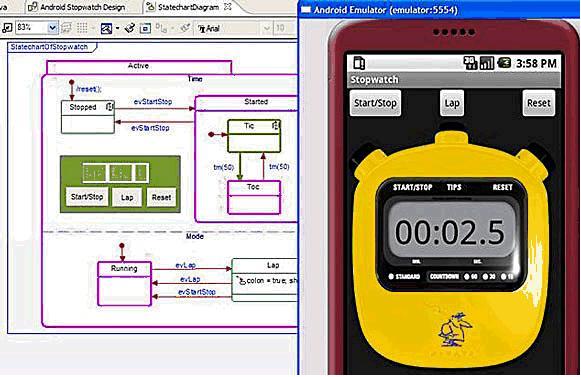
      In an earlier jazz.net library article I wrote - Developing applications for Android™ using IBM Rational Team Concert in an agile way, we saw how to leverage the power of planning, collaboration, process, source control, build management, etc that IBM Rational Team Concert (RTC) has to offer, to develop and manage Android applications in a team working across geographies and across different platforms. Now what if the team also wants to model the application, specify UML class diagrams, use case diagrams, and link them with the requirements? Such software architecture and modeling capabilities can easily become a part of the development process with IBM Rational Rhapsody.

      IBM Rational Rhapsody integrates with Rational Team Concert to offer modeling capabilities for Android applications and the visual representation of the Android framework API that developers can reference from within Rational Rhapsody. The references are then generated into Java code to automate the manual coding task. Additionally, Rational Rhapsody can read the AndroidManifest.xml file to visualize activities, services, broadcast receivers, main activity and content provides specified for better understanding of the application. The Rational Rhapsody Debugger also enables runtime animation of the class diagrams created for an Android application.
      This article, with the help of a demo video embedded below, shows how RTC and Rhapsody can be together used to design, model, develop and test a mobile application.
       

      Download and installation

      1) OS: Windows x86 / Linux x86 .

      2) IBM Rational Team Concert: Download/buy from the jazz.net download page. RTC can also be installed directly on Eclipse 3.6.x (see http://jazz.net/library/techtip/384). Note that if you're using an existing Eclipse installation to install RTC, make sure you have Eclipse 3.6 or lower (Eclipse 3.7 is not yet supported for Android development).

      3)
      Android SDK: Download the SDK from Android developer website.

      4)
      Android Development Tools(ADT): This is an eclipse plugin- the equivalent of JDT(Java Development Tools)- for Android Development. ADT can be downloaded and installed using instructions given at http://developer.android.com/sdk/eclipse-adt.html. Please follow the detailed instructions on this page for installing the ADT plugin, and also for setting the location of Android SDK in Eclipse.

      5) It is a good idea to read through the following step by step guide to set up RTC and prepare it for Android Development: http://jazzpractices.wordpress.com/2010/08/10/how-to-set-up-rtc-for-android-development/.


      6) IBM Rational Rhapsody: Download and install IBM Rational Rhapsody Developer 7.5.3 from the Rhapsody Downloads page.

      7) Including Rhapsody in the RTC Eclipse workbench: In the IBM Rational Team Concert Eclipse Client, go to Help>Install New Software> Add Software Site, and then add the <Rhapsody Installation path>\Eclipse as a local repository.
      8) Once the installation is complete, you should be able to use Rhapsody's capabilities inside the RTC Eclipse client.
      *Note: You can similarly develop Windows mobile applications using RTC's Visual Studio client and Rhapsody's Visual Studio integration


      Creating a new Rhapsody Android project and linking it with an Android project

      This step is necessary to create the model elements for an Android project.

      1. Using the Java perspective, create a new Android project. In the demo below, the project is called Test1Project.
      2. Switch to the Rhapsody Modeling perspective, and create a new Rhapsody Android project (You can also read the Rhapsody Help page to read about how to work with Android projects).  This will become the current active project. In the demo, this is called Test1Model.
      3. Switch back to the Java package explorer view, right click on Test1Project, and choose Export.... In the “Export” dialog, select “Rhapsody Model” and click next. The Export to Rhapsody Model Dialog is now displayed. You can choose what elements you want to export into the model. Once this is done, projects Test1Project and Test1Model are now linked.


      The Demo

      The demo showcases how a distributed team working on an Android application can leverage the functionality provided by IBM Rational tools, namely IBM RTC and IBM Rational Rhapsody (let's call it the Rational Solution) through the complete lifecycle of the application, right from planning, design to implementation to design and testing, and even defect tracking. 
       
      Using the Rational solution, a development team can work in either or both of the following 2 ways:

      a. Code centric development: Ability to generate code from UML abstraction and state charts.

      b. Model centric development: Ability to reverse engineer code into UML abstractions without changing the code layout and to synchronize the changes as they're done.

      See the video below:

      To see IBM Rational Team Concert and IBM Rational Rhapsody in action, and to know more about the rich features they have to offer, do attend IBM Rational Innovate India 2011 at The Leela, Bangalore from 9-11 August, 2011. You can catch me at the Rational Team Concert solution center. 

      For more information

      Android is a trademark of Google Inc. Use of this trademark is subject to Google Permissions.

      Sunday, July 10, 2011

      JazzHub for University - host Rational Team Concert projects on the cloud

      IBM Rational recently launched their cloud based offering - JazzHub - for hosting research projects using IBM Rational Team Concert. JazzHub is a free, public, hosting hub for the open development of academic research and classroom projects. Dan Griffin, on the Rational Executive blog, says
      With JazzHub, professors, students, and academic researchers will be able to create new collaborative programming projects online or join a project they were invited to - all through a SaaS model with no server install required.
      A lot of blogs and articles out there describe this new offering. However, for an engineering students, the terms are not exactly easy to understand, since most of it is industry jargon. Also, if one doesn't know about Rational Team Concert, the whole idea behind JazzHub is lost. So let me explain how the two connect.

      Software developers mostly need an IDE to help in tasks such as writing code, compiling, running and debugging projects. However, often when development is done in a team, it becomes cumbersome to share code, work simultaneously on a single piece of code and merge it with relevant changes later, track the work being done, plan who will do what, and in what time frame, keep a track on the work being done by the team members in real time. Many times, developers use third party tools along with an IDE, which may not integrate too well and may just be a stop gap solution.

      IBM Rational Team Concert (RTC) is a software development tool that brings together multiple tools that a software developer, working in a team, typically needs into one single IDE. It is built on the Eclipse platform and has two IDE's - one each for Eclipse and Visual Studio, to cater to a developer's need.  With RTC, it becomes easy to work in a team, even if the members are located in different geographies. It even has its own version control system that helps team members to easily share and work on the project source code. RTC also has provisions for project planning and using software models such as the agile model, waterfall model, iterative model, etc. depending on the needs and what stage a project is on. Such a software will, thus, be immensely helpful for students and professors working on research projects. Professors can easily administer and evaluate the project and students can work on their own areas without spending lots of time on trivial tasks such as merging code changes. See the Ted developer videos here for more:


      Since RTC helps one share source code and project work items, etc., it needs to have a server installed. The RTC folks understand that the setup for the server is not very trivial and hence, JazzHub, a cloud based offering, makes it easy for students to just get started (for free!) without the hassles of a server.

      We are travelling far and wide to educate students about the immense benefits of this new offering. If you are interested to have us organize a workshop about RTC and JazzHub at your college, feel free to contact me ( or drop a comment here) and we'll work out a plan!

      To know more about JazzHub, be there at Innovate 2011, Bangalore. If you're a student, you can also win free passes to Innovate by blogging or tweeting about rational products (use hashtag #innovateindia).

      Friday, June 24, 2011

      Update Eclipse to use JDT Java 7 features

      In a previous post, Eclipse java 7 support, I talked about the progress of java 7 related work in JDT. However, back then, there was no way of testing/using the java 7 features without downloading the relevant source code and launching another instance of Eclipse from that. The good news now is that it has become easier to use/test the java 7 features by updating Eclipse the P2 way i.e. "Install new software" option.

      A wiki page tells you how to do that. So, go ahead enjoy JDT's java 7 features. Please file any bugs, or enhancement ideas you find/have in the compiler, content assist, code select and java search here with the [1.7] tag in the "Summary". This is still a work in progress and even though a lot of work has been done and several new compiler and UI options have been introduced for java 7, we're still working on new features and testing/improving the ones already implemented. More details about the state of the art are available on http://wiki.eclipse.org/JDT_Core/Java7 and http://wiki.eclipse.org/JDT_UI/Java7.

      Note: This is an implementation of an early-draft specification developed under the Java Community Process (JCP) and is made available for testing and evaluation purposes only. The code is not compatible with any specification of the JCP.

      Thursday, June 2, 2011

      Using PhoneGap in Eclipse to develop applications for Android or other mobile platforms

      If you have been hearing a lot about this new kid on the mobile development block - PhoneGap (http://phonegap.com), and are as confused as I was when I started diving deeper, you've come to the right place to sort out your understanding a bit.

      1)What is phonegap?

      According to the website, "PhoneGap is an open source solution for building cross-platform mobile apps with modern, standards-based Web technologies. Based on HTML5, PhoneGap leverages web technologies developers already know best... HTML and JavaScript."
      The definition itself does not make things very clear though. Let me explain a bit more. So today, suppose you have a web application that you want to deploy on multiple platform, say Android, iPhone, etc. In this app, you want to use one or more of the platform services to obtain some kind of data or carry out some kind of processing. Lets take, for example, an application that lets you invite friends to a movie as soon as you book a movie ticket. The app lets you select which friends to invite directly from your phone's contacts book. That means, if you're the developer of such an app, you'll most probably have to deal with consuming the platform's contact book using, for doing which, each platform would obviously have its own different ways. So there are 2 problems here:

      1) How can you query the platform's contact book from within your web application which is being written in javascript(or Dojo) and has no knowledge of the platform's APIs.
      2) How can you do so in a platform agnostic way, so that your web app works not just on Android but also on iPhone, notwithstanding the different ways of using the contacts book in both.

      Phonegap aspires to be the answer to both of the above questions. How? It provides APIs which abstract the platform's contact book for you, so that you only deal with the Phonegap API and let phonegap do the rest of the magic for you.

      2) How do I set up/install Phonegap on my system?

      This one's not as trivial as a setup.exe, sadly! Phonegap requires a bunch of things to be installed on the machine before getting started. I found this document about installing phonegap - http://wiki.phonegap.com/w/page/16494774/Getting-started-with-Android-PhoneGap-in-Eclipse. Unfortunately, I sat down doing all the steps and till a few hours, I was not even able to create my first phonegap hello world app.

      So, the right thing to do here is to follow the above document till the "step 1f" i.e. install eclipse, android sdk, android development tools, apache ANT, and ruby. And you're almost done! Yes, don't get intimidated by the remaining steps in the doc. Step 2 onwards is a longer way of installing phoneGap and more relevant when you aren't going to use Eclipse. And that too, doesn't somehow work as stated. :(

      Phonegap can be directly installed on Eclipseas a plugin. All you need to do is go to Help>Install new software>Add and use the download site " https://svn.codespot.com/a/eclipselabs.org/mobile-web-development-with-phonegap/tags/r1.2/download". Then making sure "contact all available update sites" is checked, install the phonegap plugin. Voila!  No need to download phonegap sources from github.

      3) How do I create my first phonegap application?

      On Eclipse, first create a new phonegap project by clicking on the phonegap comnand you see on the coolbar. Then if you don't have downloaded sources for phonegap, check

      "Use Built-in PhoneGap" on the project wizard. Click Next and create the new Android project in the Android project wizard. (Note: You can also simply create an Android project, making sure that the android main activity class extends DroidGap class instead of Activity class. Make sure you add "phonegap.jar" as an external library to the build path.).


      You see that a phonegap app is nothing but an android app with the main activity class extending phoneGap's droidgap class and it's onCreate method loading an html page instead of performing any native functionality. You can replace this html page by one of your own choice in the assets/www folder. Check out http://mobile.tutsplus.com/tutorials/phonegap/creating-an-android-hello-world-application-with-phonegap/ for some good examples.

      You can now use the phonegap APIs such as the contacts API, media player API, geolocation API, etc. Ripple is a browser based emulator (a chrome extension) that you can use to test the PhoneGap applications. (Testing on the Android emulator is a bit slow with web apps).

      Happy phonegapping!